
Business Registry


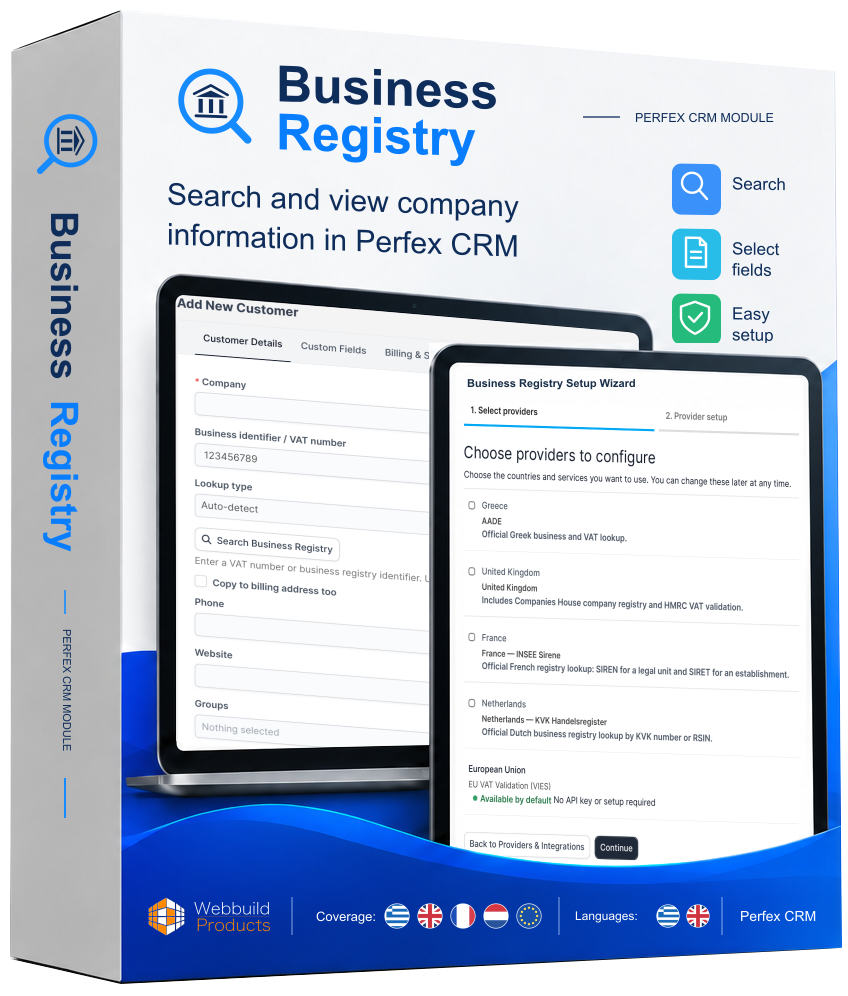
Look up business information from supported company registries and VAT services. Compare the results and update only the customer fields you choose.
Your software.
Your installations.
Business Registry
- The same product in every package.
- Choose how many active installations you need.
View license terms · Refund Policy
Each license has its own key. Quantity means separate licenses, each with the installation limit of your selected package.
Test checkout — no real payment is collected.
One-time payment · final taxes shown at checkout
1 license key for up to 1 active installation.
One-time payment · final taxes shown at checkout
1 license key for up to 3 active installations.
Payment and purchase receipt by Paddle. The final amount and taxes are shown at checkout.
Why choose Business Registry
Several services in one workflow
Access supported company registries and VAT services from your customer form. Configure the services your team needs.
You choose every change
Compare current and returned values, apply selected fields and save when you are ready. Unselected fields stay unchanged.
Fits your customer records
Use native customer fields and map additional registry details to existing custom fields or create one when needed.
Find business information where your team works
Open a new or existing customer, enter a business identifier or VAT number and run a lookup. Choose Auto-detect for supported formats or select the lookup service yourself.
Review the provider and returned information before making changes. If an identifier is ambiguous, choose an explicit lookup type.
Compare first and apply only what you need
Search
Enter the appropriate business or VAT identifier.
Review
Compare provider information with current customer values.
Apply
Choose the values that should populate the form.
Save
Finish with the normal customer Save action.
Empty provider values do not erase existing data. Invalid or ambiguous results do not offer changes to apply. Applying fields populates the form; it does not save the customer automatically.
Six services for company and VAT checks
AADE
Greece · business registry lookup by VAT number. Special Access Codes and caller VAT are required.
Companies House
United Kingdom · company lookup by company number, using your API key.
HMRC
United Kingdom · VAT validation. Customer-owned credentials require appropriate access; managed mode currently provides sandbox.
INSEE Sirene
France · SIREN or SIRET lookup, using your API key and Sirene subscription.
KVK
Netherlands · KVK number or RSIN lookup. An API key and access to the relevant paid service are required.
VIES
European Union · VAT number validation without API credentials. Available business details may be limited.
Available data depends on the provider and your access. VIES is a VAT validation service, not a full company registry. KVK subscriptions and query fees are separate from the module purchase.
HMRC managed live access is pending production approval. Business Registry is an independent Webbuild product and is not HMRC-approved, accredited, certified, recognised or Kitemarked. See our Privacy Policy and Security page.
Your providers. Your own setup.
The Setup Wizard guides you through provider selection, credentials and a setup summary. Test a connection before running lookups.
Companies House and HMRC are grouped under the United Kingdom during selection, with separate configuration. VIES needs no API credentials.
Disable a provider to remove it from lookup choices and Auto-detect without losing its saved credentials.
Try the customer workflow
Choose a sample, review its fields, apply and save. A simulation with fictional records — no live registry connection.
Keep the additional details that matter
Native customer fields are connected automatically. Field Mapping handles additional registry information using active customer custom fields.
Select an existing field or create one when needed. Mappings are grouped by provider, so you configure only the details relevant to your work.
Adjust display labels without changing technical keys or field mappings.
Manage your license and updates
Enter your Webbuild license in License & updates, check its status and manage updates for this installation. HTTPS is required for activation and update installation.
The saved key is encrypted and displayed as a mask. Check and install updates manually, or opt in to automatic installation with a valid update grant. Automatic installation is off by default.
Ready for everyday administration
English and Greek
The interface follows the Perfex language setting. Interface languages are separate from registry coverage.
Protected credentials
Stored secrets use Perfex encryption and are not shown back in settings. A blank saved-secret input preserves its value.
Guidance inside the module
Consult provider instructions and the lookup workflow alongside your settings.
Explore the Business Registry screens
From customer lookups to provider setup and updates.
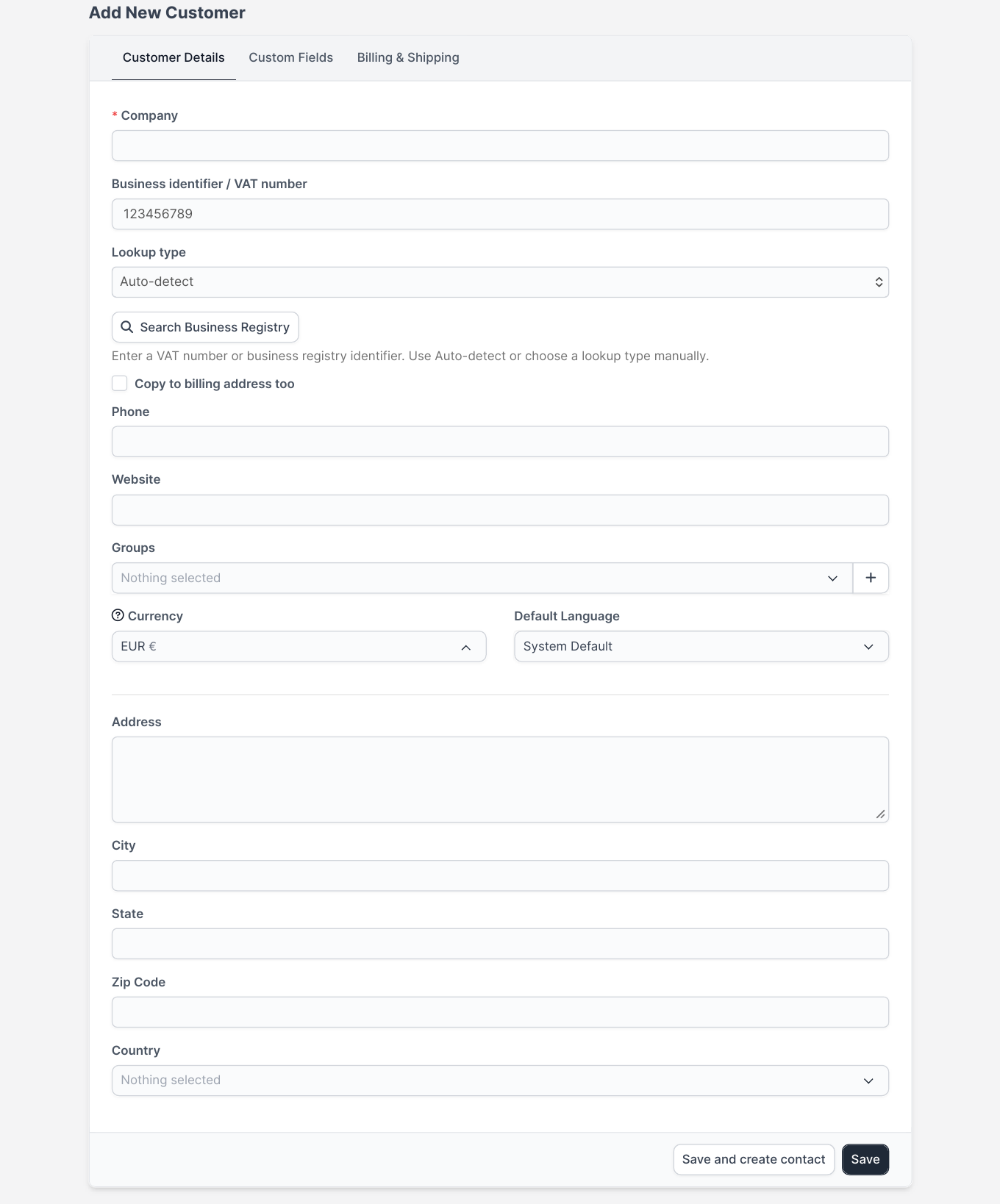
Search inside a new customer
Enter a business or VAT identifier and choose Auto-detect or a specific service.
Use arrows to change screens · Scroll inside the Mac to see the full page · Enlarge for details
Questions before you start
What do I need to install the module?*
Business Registry is an add-on for an existing Perfex CRM installation. Perfex CRM itself and external provider subscriptions are not included. Your server must be able to reach the required provider services.
What is the module compatibility?*
Requires an existing Perfex CRM installation. Specific Perfex and PHP versions remain unverified in the source material.